


You can download the datasets and R code file for this session here.
R Introduction
Contents
- What is R
- R Studio
- R Environment
- R Basics operations
- R Packages
- R Datatypes
- R Scripts and Saving the work
- My First R Program
- R Functions
- Most common errors in R
- R- Help
Introduction
- A programming language for data manipulations, statistical computing and graphics
- R is a fairly easy language to learn.
- By knowing some essential basics we can get started with data analytics.
- Later on, we can build our r coding capability by learning while working
- A good learning path for getting started in any data analysis tool or language contains 3 major steps
- Basics, environment, coding syntax
- Data handling
- Important functions and Performing analysis
What is R
- A programming language for data manipulations, statistical computing and graphics
- Programming “environment”
- Open source
- Contains numerous statistical methods
- Excellent graphics capabilities
- Supported by a large user network
- R contains some statistical algorithms that are not yet available in other tools
- Mostly considered as language than a tool
R- A Comprehensive Analytical Tool
- Can connect to any type of database
- Oracle, ODBC, Microsoft Excel, PostgreSQL, MySQL, SPSS, Oracle Data Miner, SAS/IML, JMP, Pentaho Kettle, Jaspersoft BI, SAP HANA and Hadoop
- Super visualization and graphics capabilities
- Numerus dedicated packages/ libraries for visualizations.
- Availability of all statistical algorithms
- Most of the research scholars use R in their course work. Hence most of the algorithms are available
- Many more solutions
- Data Handling, Data mining , data visualization, text mining, Big data & Machine learning
Download and Install R
- Go to the R homepage and locate the download link http://cran.r-project.org/
- Select the relevant version & download it
- Install it by executing the .exe file
R-Studio
- R studio is an user-friendly UI for interacting with R
- R is command line interface, coding might be little slow for learners
- Where as R studio gives us shortcuts for direct clicks
- It is a free and open-source integrated development environment (IDE) for R
- R studio has comprehensive abilities to make the coding on R more efficient
- You need R to make R-Studio work
- R-Studio is just a skin, the actual core programming language is R. All the commands typed in R-Studio will be submitted to R and the output will be fetched and displayed in R Studio
Download and Install R-Studio
- Go to the R-Studio homepage and locate the download link https://www.rstudio.com/
- Select the relevant version & download it
- Install it by executing the .exe file
Three Main Windows
- Console
- Workspace
- Output
R Console
- This is where we type and submit the commands
- Most of the times the output is shown in the console itself
- Hit Enter key to submit the commands
- Up and Down arrows will recall previous command
- Type partial command and use ‘tab’ key for autofill recommendations
R – Quick Warm-up
68+28## [1] 96134*456## [1] 61104sqrt(119)## [1] 10.90871log(10)## [1] 2.302585exp(5)## [1] 148.4132Workspace
- During an R session, all user defined objects are stored in a temporary, working memory
- Commands are entered interactively at the R user prompt.
- Up and down arrow keys scroll through your command history.
- list objects ls()
- remove objects rm()
- data()
- The objects in the workspace will last for just for that session, unless we save the workspace
The Assign Operator
- “<-” used to indicate assignment
x<-7y<-68+28z<-134*456k<-sqrt(119)- Assignment to an object is denoted by “<-” or “->” or “=”.
Naming convention
- Must start with a letter (A-Z or a-z)
- Can contain letters, digits (0-9), and/or periods “.”
- R is a case sensitive language.
- newdata different from NewData
LAB: Working with R
x <- rnorm(1000,mean=20,sd=5)
x
## [1] 29.727512 22.027772 14.173818 11.567661 11.290773 28.545150
## [7] 23.336270 10.623532 25.238777 28.339100 19.317402 22.607638
## [13] 16.696072 20.682688 18.952773 21.853967 24.366763 19.695094
## [19] 17.400101 21.136721 29.736818 23.917742 25.168942 25.422684
## [25] 11.653086 22.272998 27.392081 15.312394 20.621272 20.774217
## [31] 26.400664 20.912214 21.110055 24.317066 18.775163 19.759073
## [37] 17.423549 25.615045 20.155949 20.382279 24.729653 17.432053
## [43] 17.433073 16.289813 22.945870 24.711526 17.996536 17.654353
## [49] 33.622504 17.235110 24.032638 18.196793 14.204424 15.881424
## [55] 20.831512 29.730846 19.276928 18.181224 25.362097 14.644336
## [61] 22.779562 11.467166 17.549835 22.901572 30.653036 13.740296
## [67] 15.412779 21.977330 26.986697 23.066531 20.802516 27.602665
## [73] 21.174894 19.420062 29.804671 25.722596 22.245351 20.137828
## [79] 8.641546 18.413145 16.674934 17.744648 14.345363 26.419367
## [85] 25.286868 22.819012 19.278091 24.047195 20.367724 7.406066
## [91] 25.085621 24.219120 19.048239 22.182127 10.387633 26.160024
## [97] 21.120116 20.110008 26.169600 21.986982 23.216666 28.166575
## [103] 17.877387 12.994729 13.082539 19.386388 21.613470 26.454635
## [109] 21.686849 27.967669 14.250426 19.472040 17.442288 15.332908
## [115] 27.594943 28.256114 32.458636 16.783834 14.985155 25.150545
## [121] 12.632237 16.698488 11.660866 21.716199 20.933646 22.702097
## [127] 15.476770 20.205206 26.343377 10.139146 15.813740 15.634903
## [133] 16.514700 24.291489 15.913789 23.240543 20.506762 16.580606
## [139] 22.207518 9.691391 16.676488 19.984987 21.002244 17.029171
## [145] 20.806644 11.498186 19.899529 22.933672 14.163869 21.947553
## [151] 25.157130 18.244896 16.461983 8.412688 25.306571 23.125001
## [157] 17.606258 30.266219 22.116809 16.431025 17.083604 15.466805
## [163] 24.401583 19.544583 19.942909 27.119469 18.213193 14.463331
## [169] 22.176626 19.306320 17.776627 22.418411 17.234031 18.643855
## [175] 14.138607 24.799317 13.090200 21.463304 34.173550 16.199937
## [181] 17.352828 28.606000 15.466058 18.753820 25.505661 22.614690
## [187] 27.898874 24.758957 18.805842 20.594374 22.588168 23.769131
## [193] 19.655519 9.011509 25.684415 20.046036 16.952598 29.516783
## [199] 20.608292 15.339981 25.789671 21.119468 15.386253 17.075294
## [205] 20.530112 17.378699 22.577657 23.077779 16.267017 34.587203
## [211] 17.038457 22.662198 18.369485 20.938257 17.675383 16.516821
## [217] 19.366059 12.921027 21.492170 19.151660 28.779073 15.795389
## [223] 22.036802 26.010214 18.312752 16.922768 19.836704 23.957549
## [229] 8.068545 20.327931 15.564294 31.962241 12.362306 24.442804
## [235] 22.079282 22.009864 30.348366 16.951518 17.823881 13.821275
## [241] 23.030961 23.299950 17.091296 13.137487 17.041698 19.996918
## [247] 20.373975 32.081578 23.157645 17.717973 19.656141 19.713430
## [253] 16.304237 15.845531 21.181814 18.263276 31.491360 13.226387
## [259] 20.753108 33.975560 21.556913 25.103936 30.089965 10.538623
## [265] 30.962363 23.459218 13.792790 19.196656 20.129247 24.564201
## [271] 24.577835 21.519863 29.632636 13.814721 25.846305 29.057134
## [277] 20.171712 18.640709 26.183392 16.849311 13.704763 20.029619
## [283] 16.997223 25.276494 25.027250 15.552910 27.133327 23.615325
## [289] 25.210040 18.196115 16.591711 16.425250 15.852650 16.721285
## [295] 23.976945 23.120209 16.552743 22.714420 22.319958 31.019111
## [301] 23.850647 17.985637 21.325981 23.062039 17.563887 13.274493
## [307] 13.466433 19.765545 11.638812 21.977456 31.443411 19.689766
## [313] 19.683234 22.671269 27.047825 21.140776 14.350831 23.163323
## [319] 24.993487 13.308481 17.804535 17.430428 22.258972 16.858152
## [325] 24.146135 28.916969 20.784642 22.103654 23.235227 18.363599
## [331] 17.491072 22.285308 27.187974 24.384006 25.319820 25.645659
## [337] 18.077088 15.741573 17.156785 17.726549 15.399142 22.906717
## [343] 26.668604 20.498866 30.550796 22.255092 21.430002 17.090993
## [349] 21.083509 26.410319 25.184856 7.431343 22.397728 18.231511
## [355] 23.770490 22.288674 21.518100 17.622687 20.853831 16.578927
## [361] 23.623828 15.994951 30.322290 20.969471 18.448244 20.520756
## [367] 19.460768 21.296014 18.290777 15.212567 26.234917 17.666005
## [373] 23.687114 26.716202 13.969268 24.962188 23.602565 14.667628
## [379] 23.822215 18.320073 19.108169 17.859525 17.757073 25.693470
## [385] 21.641692 17.674582 13.870166 12.694512 19.477806 22.126312
## [391] 21.341572 15.989978 28.426667 16.442703 26.313395 11.106016
## [397] 21.517167 19.037988 32.208319 21.036600 10.401488 31.509901
## [403] 16.909775 18.415838 9.804727 22.178392 13.978888 24.746192
## [409] 14.801578 17.466264 18.272845 19.615796 21.026918 26.233214
## [415] 20.083827 22.525222 9.372677 5.471432 16.726941 19.586206
## [421] 22.416402 15.593327 23.508801 22.653192 21.768656 21.190214
## [427] 29.530999 7.345017 20.875496 12.102681 22.081654 25.687963
## [433] 10.674088 21.643438 21.733889 21.527027 29.696669 19.753639
## [439] 22.414899 17.257994 13.960491 30.577455 13.590040 16.520321
## [445] 20.385122 23.055598 13.264064 13.384380 26.204026 15.962176
## [451] 30.001610 24.975408 22.229407 25.832827 20.740921 17.902771
## [457] 16.818382 20.727127 18.295186 13.015456 17.720566 23.635101
## [463] 24.290884 19.195902 14.333086 16.042536 21.576213 22.272675
## [469] 17.318944 30.251992 18.554159 29.921826 23.126921 22.335424
## [475] 11.337965 9.712197 8.717392 15.707144 29.278814 19.281417
## [481] 18.233900 12.032921 18.732276 16.491830 15.407045 24.378203
## [487] 17.095985 21.029514 16.466080 19.070435 15.672621 18.779453
## [493] 22.927014 26.485272 22.902771 21.741249 24.942199 22.276011
## [499] 19.850424 15.324483 19.433889 18.308885 26.614344 21.896915
## [505] 11.770512 25.121654 18.051333 25.562428 28.974449 21.074008
## [511] 24.134702 8.458984 20.923043 25.735673 20.900147 14.571439
## [517] 23.795236 11.557096 19.032457 29.499164 19.420786 21.199031
## [523] 25.932573 8.876581 12.821955 18.202377 18.554885 23.426905
## [529] 26.536813 21.380011 21.846392 16.335892 24.277272 28.138421
## [535] 26.500791 23.818051 11.960563 23.589115 19.475901 18.853133
## [541] 21.214499 28.666910 24.947389 17.659138 12.469256 27.073906
## [547] 26.686557 23.085566 14.240169 14.808822 16.688735 13.946308
## [553] 27.804613 27.700073 15.900484 18.888252 23.150262 20.993335
## [559] 20.078851 23.775798 26.474347 14.854370 20.240155 24.757675
## [565] 22.219904 16.192665 13.060905 26.078641 17.518245 25.785360
## [571] 28.437244 16.988412 20.572044 16.155074 24.252410 20.858714
## [577] 22.430396 26.036905 11.690045 12.464086 30.407987 31.106195
## [583] 15.477675 19.804692 19.451855 22.531757 22.320660 17.879739
## [589] 34.887069 22.801761 21.179131 14.492035 28.361927 29.077376
## [595] 20.534770 26.247919 20.395065 21.099368 9.295359 21.247362
## [601] 10.408193 18.622757 25.963462 27.524196 22.760837 17.005384
## [607] 22.010480 25.358175 21.348835 20.721979 14.261099 26.914990
## [613] 21.060421 17.496182 20.226238 27.610966 22.209560 20.015765
## [619] 16.287719 12.893625 26.409264 14.567679 29.352838 19.716488
## [625] 22.001347 17.045938 12.300877 19.785634 19.221634 16.768579
## [631] 13.309049 22.909324 24.992536 15.502990 20.884396 22.417801
## [637] 15.081900 21.522051 24.911567 24.561802 19.743491 17.364330
## [643] 11.448953 24.816523 15.493115 21.037278 22.436472 14.611121
## [649] 24.101681 16.471575 23.441284 20.519828 14.437120 21.932926
## [655] 25.019366 21.190071 21.717150 23.081726 20.684399 19.836137
## [661] 15.419452 21.184117 26.328972 20.669426 16.886217 16.478219
## [667] 23.762737 29.938412 15.331936 10.079235 18.091092 12.324329
## [673] 19.437112 19.931701 25.508238 21.073580 23.088567 18.154038
## [679] 17.463793 25.977010 29.278583 23.100171 25.379744 21.772949
## [685] 16.971225 20.761156 12.820146 30.591575 20.839551 31.781976
## [691] 15.987095 17.504043 28.677303 16.711454 15.792376 18.828107
## [697] 22.164995 17.282692 19.343596 22.531538 20.263012 19.678264
## [703] 18.709399 20.405853 20.782477 19.767363 16.053323 27.061384
## [709] 19.737181 26.483659 19.398232 22.890951 12.145002 26.302212
## [715] 20.752499 12.414235 23.207896 30.764119 27.088660 13.567575
## [721] 13.596255 25.377880 24.870826 17.340803 24.755759 25.542423
## [727] 19.115129 21.414287 23.440763 27.871175 22.037819 23.180335
## [733] 22.511037 19.221952 15.939205 25.054925 30.220672 13.119708
## [739] 15.706674 25.004249 19.257284 16.632356 19.541559 16.974871
## [745] 16.852292 24.538191 23.413720 22.405756 17.476713 18.778854
## [751] 20.829434 19.111266 24.626245 24.301301 21.936837 21.610876
## [757] 23.844085 30.350177 21.518825 19.280792 23.284695 26.628839
## [763] 24.106712 19.448038 14.513543 20.719627 26.996327 14.628779
## [769] 22.572400 10.394729 17.961564 23.135872 15.984582 24.298295
## [775] 19.188606 21.169912 17.830440 25.480069 14.568884 15.680531
## [781] 19.830539 18.630551 20.866931 27.819166 15.121630 13.843840
## [787] 16.388020 17.040887 19.785344 16.278083 22.651521 24.395421
## [793] 25.486104 25.549499 22.980868 19.648534 14.658246 12.985290
## [799] 27.238426 22.086507 15.030376 26.842067 18.007588 22.657393
## [805] 28.744461 24.935354 17.174687 18.403790 23.801563 27.410771
## [811] 14.474528 23.857910 18.500923 20.949005 16.417592 23.272319
## [817] 13.074286 12.346769 23.483140 20.184164 18.510095 22.052894
## [823] 20.589209 25.118588 26.846245 22.489599 25.267335 12.491648
## [829] 19.373453 16.047960 18.556984 16.257403 21.905341 20.213579
## [835] 16.548013 12.471732 25.618366 28.437215 17.456180 18.373999
## [841] 17.881439 17.545000 25.063343 24.855744 12.930833 23.838372
## [847] 17.539595 15.891848 21.157843 20.735751 18.970610 16.890390
## [853] 15.906976 23.509515 20.399574 18.058508 21.689823 22.778539
## [859] 22.723346 21.015544 21.295720 16.465603 13.611244 16.586355
## [865] 20.908675 21.148464 26.357688 18.260495 16.272430 16.755129
## [871] 25.984127 31.489427 17.261744 21.772685 22.007434 24.851916
## [877] 19.733491 20.589950 14.416504 21.628835 23.928860 10.147253
## [883] 16.553029 14.502338 21.434648 21.507492 15.579007 22.270235
## [889] 19.189912 22.075889 23.655799 17.971290 25.127437 7.930384
## [895] 19.048262 17.705362 14.745877 19.528426 30.919585 19.000064
## [901] 19.304166 19.775426 17.546814 19.157778 13.854038 16.572636
## [907] 16.745860 20.939633 12.698834 17.521182 18.247028 15.698520
## [913] 16.377031 21.862080 22.000891 20.879660 13.626218 23.695772
## [919] 9.929162 25.062728 14.243576 13.266657 10.237104 17.133295
## [925] 14.053217 15.329687 12.266174 22.342217 13.786468 20.427231
## [931] 20.518508 15.643824 16.700909 23.960381 17.542203 11.539881
## [937] 14.208695 22.459240 22.399263 11.164244 33.942188 24.081148
## [943] 25.887615 23.564897 20.836841 27.789659 23.848107 19.531269
## [949] 20.795473 16.967840 20.019288 17.733159 13.076931 14.758359
## [955] 15.186519 13.594224 17.271994 14.996255 18.831467 31.342821
## [961] 23.492658 22.039948 21.045584 23.673465 16.381956 9.372736
## [967] 20.180343 20.821498 19.630436 20.919515 19.234222 27.355534
## [973] 21.447976 21.647215 19.309875 26.374084 25.485520 17.149242
## [979] 15.161896 15.295486 11.753244 21.928955 18.138346 21.055981
## [985] 19.484901 16.884938 27.356565 27.056626 13.589372 19.441235
## [991] 25.480919 14.468213 35.919713 19.517106 11.803202 10.565383
## [997] 17.919860 23.029789 20.178839 24.005591mean(x)## [1] 20.313m <- mean(x)
m## [1] 20.313s<-sd(x)
s## [1] 5.044078R Packages
- R consists of a core and packages. Packages contain functions that are not available in the core.
- Collections of R functions, data, and compiled code
- When you download R, already a number (around 30) of packages are downloaded as well.
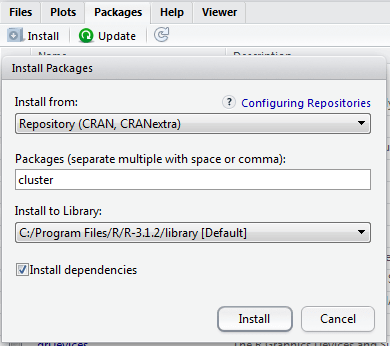
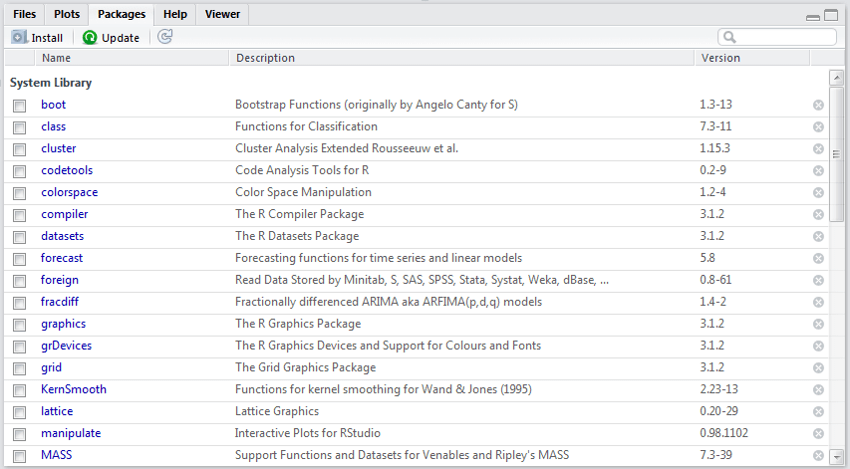
- Select the ‘Packages’ menu and select ‘Install Package’, a list of available packages on your system will be displayed.
- Select one and click ‘OK’, the package is now attached to your current R session. Via the library function
- Before using a function, we need to install the package that contains it
Download & Install Package
Load a package
LAB: Installing packages
- Create three random vectors x, y, z of size 1000.
- Use rnorm() function to create these vectors.
- Draw a 3d scatter plot of these three vectors use the code scatterplot3d(x,y,z)
Code: Installing packages
x <- rnorm(1000,mean=20,sd=5)
y <- rnorm(1000,mean=15,sd=3)
z <- rnorm(1000,mean=25,sd=8)


install.packages("scatterplot3d", repos = 'cran.rstudio.com')
library(scatterplot3d)
scatterplot3d(x,y,z)
Some Useful Packages in R
- There are nearly 7000 packages in R
- Data handling Packages:
- RODBC,RMySQL,RPostgresSQL,RSQLite, downloader, XLConnect,xlsx, foreign, dplyr, tidyr, plyr, reshape2, zoo
- Data visualization packages:
- ggplot2,ggvis, rgl, htmlwidgets, dygraphs, plotly, shiny, rcdimple
- Advanced Analysis Packages:
- Car, mgcv, lme4/nlme, randomForest, multcomp, vcd, glmnet, survival, e1071, Forecast, nnet
R- Data Types
- Vectors
- Basic R Type.
- Data Frames
- Collection of vectors.
- Lists
- Collection of R objects
- Other type
- Matrix
- Factor
- Array
R Vectors
- The basic data structure in R is the vector.
- Vectors are the simplest R objects, an ordered list of primitive R objects of a given type (e.g. real numbers, strings and logical).
- Vectors are indexed by integers starting at 1
- You can create a vector using the c() function which concatenates some elements
R Vectors
name <-'March'
is.vector(name)
## [1] TRUEAge<-29
is.vector(Age)## [1] TRUEc() is a concatenate operator
Age <- c(15, 17, 16, 15, 16)
English<- c(40, 56, 30, 68, 35)
Science<- c(85, 80, 74, 39, 65)
Name<- c("John", "Bob", "Kevin", "Smith", "Rick")

is.vector(Age)
## [1] TRUEis.vector(English)## [1] TRUEis.vector(Name)## [1] TRUE- Most mathematical functions and operators can be applied to vectors without writing any loops
Age+3## [1] 18 20 19 18 19English1<- English+10
English1<-80
Total<- English1 + Science
Total## [1] 165 160 154 119 145Age/Total## [1] 0.09090909 0.10625000 0.10389610 0.12605042 0.11034483Accessing Vector Elements
- Use the [] operator to select elements
- To select specific elements:
- Use index or vector of indexes to identify them
- To exclude specific elements:
- Negate index or vector of indexes
Age## [1] 15 17 16 15 16Age[3]## [1] 16Age[2:5]## [1] 17 16 15 16Age[-2]## [1] 15 16 15 16Age[3]<-19
Age[5]<-21
Age## [1] 15 17 19 15 21Vector Types
- Numeric and Character Vectors
class(Age)## [1] "numeric"class(Name)## [1] "character"R Data frames
- Similar to dataset /data tables in other tools
- Collection of related vectors
- Most of the time, when data is Imported from external sources, it will be stored as a data frame
- If we just use c() it will not create a data frame, we need to use data.frame function
Students <- data.frame(Name, Age, English, Science)
Students
## Name Age English Science
## 1 John 15 40 85
## 2 Bob 17 56 80
## 3 Kevin 19 30 74
## 4 Smith 15 68 39
## 5 Rick 21 35 65Profile_data <- data.frame(Name, Age)
Profile_data## Name Age
## 1 John 15
## 2 Bob 17
## 3 Kevin 19
## 4 Smith 15
## 5 Rick 21students1 <-c(Name, Age, English, Science)
students1## [1] "John" "Bob" "Kevin" "Smith" "Rick" "15" "17" "19"
## [9] "15" "21" "40" "56" "30" "68" "35" "85"
## [17] "80" "74" "39" "65"str(Students)## 'data.frame': 5 obs. of 4 variables:
## $ Name : Factor w/ 5 levels "Bob","John","Kevin",..: 2 1 3 5 4
## $ Age : num 15 17 19 15 21
## $ English: num 40 56 30 68 35
## $ Science: num 85 80 74 39 65str(students1)## chr [1:20] "John" "Bob" "Kevin" "Smith" "Rick" "15" ...Accessing R Data Frames
- Accessing a row or a Column or an element in the data frame
Students$Name## [1] John Bob Kevin Smith Rick
## Levels: Bob John Kevin Rick SmithStudents$English## [1] 40 56 30 68 35Students$Science## [1] 85 80 74 39 65Students["Science"]## Science
## 1 85
## 2 80
## 3 74
## 4 39
## 5 65Students["Name"]## Name
## 1 John
## 2 Bob
## 3 Kevin
## 4 Smith
## 5 RickStudents[1,]## Name Age English Science
## 1 John 15 40 85Students[,1]## [1] John Bob Kevin Smith Rick
## Levels: Bob John Kevin Rick SmithStudents[,2:4]## Age English Science
## 1 15 40 85
## 2 17 56 80
## 3 19 30 74
## 4 15 68 39
## 5 21 35 65Students[,-1]## Age English Science
## 1 15 40 85
## 2 17 56 80
## 3 19 30 74
## 4 15 68 39
## 5 21 35 65Students[-1,]## Name Age English Science
## 2 Bob 17 56 80
## 3 Kevin 19 30 74
## 4 Smith 15 68 39
## 5 Rick 21 35 65Students[,c(1,4)]## Name Science
## 1 John 85
## 2 Bob 80
## 3 Kevin 74
## 4 Smith 39
## 5 Rick 65Difference in Accessed Data frame elements
Three different ways of accessing may not produce same type of results
x<-Students$Name
y<-Students["Name"]
z<-Students[,1]
x## [1] John Bob Kevin Smith Rick
## Levels: Bob John Kevin Rick Smithy## Name
## 1 John
## 2 Bob
## 3 Kevin
## 4 Smith
## 5 Rickz## [1] John Bob Kevin Smith Rick
## Levels: Bob John Kevin Rick Smithstr(x)## Factor w/ 5 levels "Bob","John","Kevin",..: 2 1 3 5 4str(y)## 'data.frame': 5 obs. of 1 variable:
## $ Name: Factor w/ 5 levels "Bob","John","Kevin",..: 2 1 3 5 4str(z)## Factor w/ 5 levels "Bob","John","Kevin",..: 2 1 3 5 4Built-in Data Frames
- Some dataset examples that are already present in R.
- User can use these examples to prepare some demos.
- Comes as a part of a primary package in R.
data()
AirPassengers ## Jan Feb Mar Apr May Jun Jul Aug Sep Oct Nov Dec
## 1949 112 118 132 129 121 135 148 148 136 119 104 118
## 1950 115 126 141 135 125 149 170 170 158 133 114 140
## 1951 145 150 178 163 172 178 199 199 184 162 146 166
## 1952 171 180 193 181 183 218 230 242 209 191 172 194
## 1953 196 196 236 235 229 243 264 272 237 211 180 201
## 1954 204 188 235 227 234 264 302 293 259 229 203 229
## 1955 242 233 267 269 270 315 364 347 312 274 237 278
## 1956 284 277 317 313 318 374 413 405 355 306 271 306
## 1957 315 301 356 348 355 422 465 467 404 347 305 336
## 1958 340 318 362 348 363 435 491 505 404 359 310 337
## 1959 360 342 406 396 420 472 548 559 463 407 362 405
## 1960 417 391 419 461 472 535 622 606 508 461 390 432cars## speed dist
## 1 4 2
## 2 4 10
## 3 7 4
## 4 7 22
## 5 8 16
## 6 9 10
## 7 10 18
## 8 10 26
## 9 10 34
## 10 11 17
## 11 11 28
## 12 12 14
## 13 12 20
## 14 12 24
## 15 12 28
## 16 13 26
## 17 13 34
## 18 13 34
## 19 13 46
## 20 14 26
## 21 14 36
## 22 14 60
## 23 14 80
## 24 15 20
## 25 15 26
## 26 15 54
## 27 16 32
## 28 16 40
## 29 17 32
## 30 17 40
## 31 17 50
## 32 18 42
## 33 18 56
## 34 18 76
## 35 18 84
## 36 19 36
## 37 19 46
## 38 19 68
## 39 20 32
## 40 20 48
## 41 20 52
## 42 20 56
## 43 20 64
## 44 22 66
## 45 23 54
## 46 24 70
## 47 24 92
## 48 24 93
## 49 24 120
## 50 25 85Lists
- A list is a collection of R objects / components
- A list allows you to gather a variety of (possibly unrelated) objects under one name.
- list() creates a list.
- The objects in a list need not have to be of the same type or length.
- The output of several statistical algorithms contain multiple objects. All those components are ordered in list and returned as output
x <- c(1:20)
y <- FALSE
z<-"Mike"
k<-30
l<-Students
Disc<-"This is a list of all my R elements"
str(x)## int [1:20] 1 2 3 4 5 6 7 8 9 10 ...str(y)## logi FALSEstr(z)## chr "Mike"str(k)## num 30str(l)## 'data.frame': 5 obs. of 4 variables:
## $ Name : Factor w/ 5 levels "Bob","John","Kevin",..: 2 1 3 5 4
## $ Age : num 15 17 19 15 21
## $ English: num 40 56 30 68 35
## $ Science: num 85 80 74 39 65mylist<-list(Disc,x,y,z,k,l)
str(mylist)## List of 6
## $ : chr "This is a list of all my R elements"
## $ : int [1:20] 1 2 3 4 5 6 7 8 9 10 ...
## $ : logi FALSE
## $ : chr "Mike"
## $ : num 30
## $ :'data.frame': 5 obs. of 4 variables:
## ..$ Name : Factor w/ 5 levels "Bob","John","Kevin",..: 2 1 3 5 4
## ..$ Age : num [1:5] 15 17 19 15 21
## ..$ English: num [1:5] 40 56 30 68 35
## ..$ Science: num [1:5] 85 80 74 39 65mylist## [[1]]
## [1] "This is a list of all my R elements"
##
## [[2]]
## [1] 1 2 3 4 5 6 7 8 9 10 11 12 13 14 15 16 17 18 19 20
##
## [[3]]
## [1] FALSE
##
## [[4]]
## [1] "Mike"
##
## [[5]]
## [1] 30
##
## [[6]]
##    Name Age English Science
## 1  John  15      40      85
## 2   Bob  17      56      80
## 3 Kevin  19      30      74
## 4 Smith  15      68      39
## 5 Rick 21 35 65mylist[1]## [[1]]
## [1] "This is a list of all my R elements"mylist[2]## [[1]]
## [1] 1 2 3 4 5 6 7 8 9 10 11 12 13 14 15 16 17 18 19 20mylist[[2]][1]## [1] 1Lists Example
cars
reg_model<-lm(cars$dist~cars$speed)
reg_model
str(reg_model)
reg_model[1]
reg_model[2]
reg_model[7]
reg_model[[7]][1]
reg_model[[7]][2]
Other Data types
- Factor
- A factor is a categorical variable. Useful data type which is better than strings for a specific class of machine learning problems
- Very handy while performing analysis related to categorical data
- Factor may not always strings
- factor() function creates factor variables
- Matrix
- A multidimensional array
- Like a vector makes looping operations very easy, matrix makes some multidimensional calculations very easy
- Works perfectly for a lot of optimization problems which involve intense calculations
Factors Example
gender<-c("Male","Female")
gender
## [1] "Male" "Female"gender1<-factor(gender)
str(gender1)## Factor w/ 2 levels "Female","Male": 2 1result<-c(1,0)
result## [1] 1 0str(result)## num [1:2] 1 0result1<-factor(result)
str(result1)## Factor w/ 2 levels "0","1": 2 1R History
- Helps in accessing previously executed commands
- User can send the selected history to either console or to source
R Source file and Scripts
- R script or code file
- Can be used to re execute the stored codes
- Hit Ctrl+enter to execute the commands
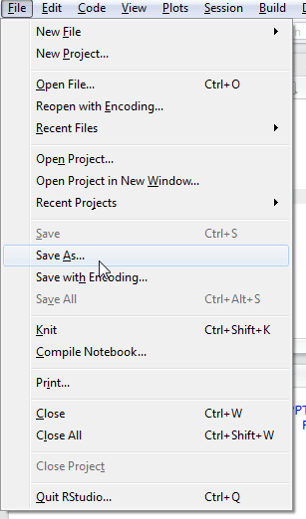
- Save R script files for future use.
Saving R Script
Saving & Loading R Work Image
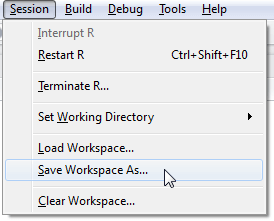
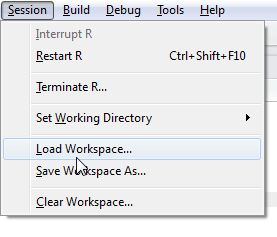
Saves all the R objects, including lists, arrays, data frames Saves all the R objects, including lists, arrays, data frames. Loads the previous working image
LAB- My First R program
- Create income data(vector) for 4 employees with the values 5500, 6700, 8970, 5634
- Create a new variable tax and save 0.2 in it
- Create a new variable year and save 2015 in it
- Create a new variable company and save “DataVedi” in it
- Derive net_income by deducting tax from the income
- Create Employee name(vector) for 4 employees with the values Redd, Kenn, Finn, Scott
- Create a data frame with Employee name and Net income
- Create a new list with all the above information on company, year, tax, Employee name and Salary dataset
Solution
Income<- c(5500, 6700, 8970, 5634)
Tax<-0.2
Year<-2015
Company<-"DataVedi"
Net_income<- Income*(1-Tax)
Emp_name<-c("Redd", "Kenn", "Finn", "Scott")
Emp_database<-data.frame(Net_income, Emp_name)
Emp_db_list<-list(Income,Tax, Year, Company, Emp_database)
R- Functions
- We are already using some functions like c(), is.vector(), str()
- Numeric Functions
- abs(x), sqrt(x), ceiling(x), floor(x), trunc(x), round(x, digits=n) ,signif(x, digits=n), cos(x), sin(x), tan(x) ,log(x), log10(x), exp(x)
- String Functions
- substr(x, start=n1, stop=n2), toupper(x), grep(pattern, x , ignore.case=FALSE, fixed=FALSE)
y<-abs(-20)
x<-sum(y+5)
Z<-log(x)
round(Z,1)
## [1] 3.2cust_id<-"Cust1233416"
id<-substr(cust_id, 5,10)
Up=toupper(cust_id)
grep(4, cust_id) ## [1] 1Most Common Errors in R
- While executing the code on R, its very likely that we get some error.
- There are some common errors like syntax & missing packages. By following the below check list you can quickly fix the code errors
- Could not find the object: Error: object ‘XXXXX’ not found
- Two reasons; The object really not there or most of the times it’s the problem with upper and lower case. We declared as myvar and trying to use it as Myvar
- The first check that you should perform is to look the upper and lower case of names
myvar <- c(15, 17, 16, 15, 16)
Myvar
Error: object 'Myvar' not found- Could not find the specific function: Error: could not find function “qplot”
- Occurs when the relevant package is missing.
- Can fix it by simply installing/attaching the package that contains the function
qplot(mpg, wt, data=mtcars)
Error: could not find function 'qplot'
library(ggplot2)
qplot(mpg, wt, data=mtcars)- Non-numeric argument to binary operator or Invalid ‘type’ (xxxx) of argument
- Occurs when we try to apply numeric functions on non numeric variables
Name<- c("John", "Bob", "Kevin", "Smith", "Rick")
Name+1- No such file or directory:
- File really doesn’t exists
- Most of times file exists, but the path or file name might be wrong or misspelled.
- The package is incompatible or built for old version of R.
- Need to install the latest version of the package
R-Help
- Help home
help.start()- Help on specific functions and usage
?substr()
help(substr)
Conclusion
- In this session we covered the basics of R.
- We need to be very comfortable with all the topics discussed in this session.
- We will be using these topics very often while working on R.
- In later sessions we will discuss Data handling techniques.

Comments